
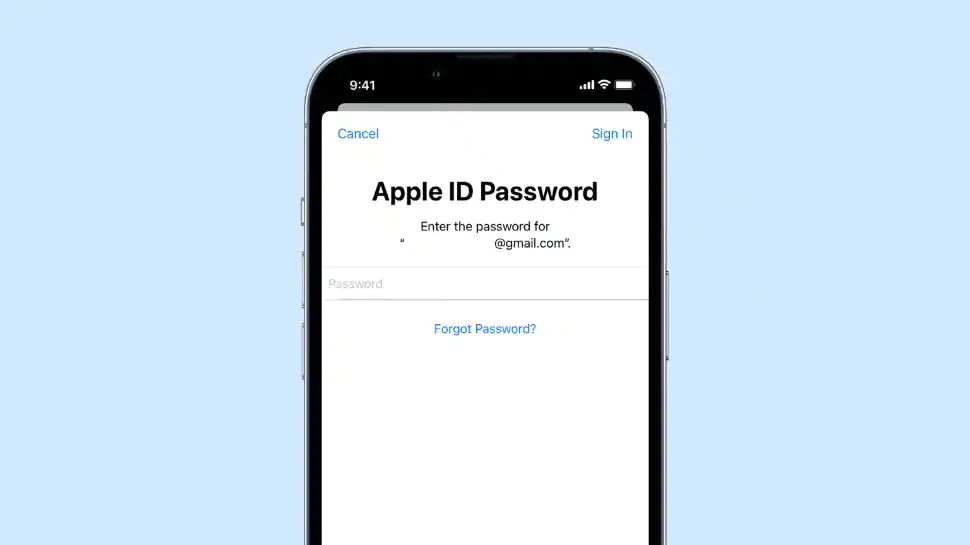
Apple ID is Apple’s version of Google Account, much needed everywhere. Apple device owners have to enter their Apple ID details almost every time they use their devices, from purchasing new software to signing in to their iCloud account and making payments on Apple Music.
One would think that using your Apple ID password regularly will make it unforgettable. However, you tend to forget your Apple ID password. If you find yourself in this situation, here are step-by-step instructions to reset your Apple ID password.
How to reset your Apple ID password on iPhone and iPad
Step 1: On your iPhone or iPad, go to and open the Settings app.
Step 2: Now tap on your name at the top of the screen and select Password & Security.
Step 3: Then select Change password from the drop-down menu.
Step 4: You will be asked to enter your device password if you are signed in to iCloud and the password is enabled.
Step 5: To change your password, follow the on-screen instructions.
How to reset your Apple ID password on Mac or MacBook
Here’s how to reset your Apple ID if you have a Mac computer or a MacBook laptop.
Step 1: To get started, access the Apple menu at the top of the screen.
Step 2: Then go to System Preferences and select Apple ID from the drop-down list.
Step 3: Then select Password & Security from the drop-down list.
Step 4: If you are prompted for your Apple ID password, select Forgot Apple ID or Password and follow the onscreen instructions.
Step 5: Now select Change password from the dropdown menu.
Step 6: Now enter the password you use to unlock your Mac and you’re done.
However, if you are unable to change or reset your Apple ID password, there is another way to reset your Apple ID password. All you have to do now is follow the steps below.
Step 1: Go to iforgot.apple.com to recover your password.
Step 2: Now you will need to enter your Apple ID.
Step 3: Then choose the Reset password option followed by the Continue option.
Step 4: Choose how you want to answer your security questions. After that, you will receive an email with all the information. You can also enter your recovery code.
Step 5: Finally, reset the password by following the on-screen instructions.
.
Source – zeenews.india.com

Chris Skeldon is a contributor to Brytfmonline.com, covering a wide range of topics including news, politics, business, technology, sports, entertainment, and lifestyle. He focuses on delivering clear, accurate, and reader-friendly reporting that helps audiences stay informed about current events and emerging developments. With an emphasis on useful information and balanced storytelling, Chris aims to provide timely coverage of issues and stories that matter most to readers.